Git Revert Explained (Beginner Friendly)
Git & Github
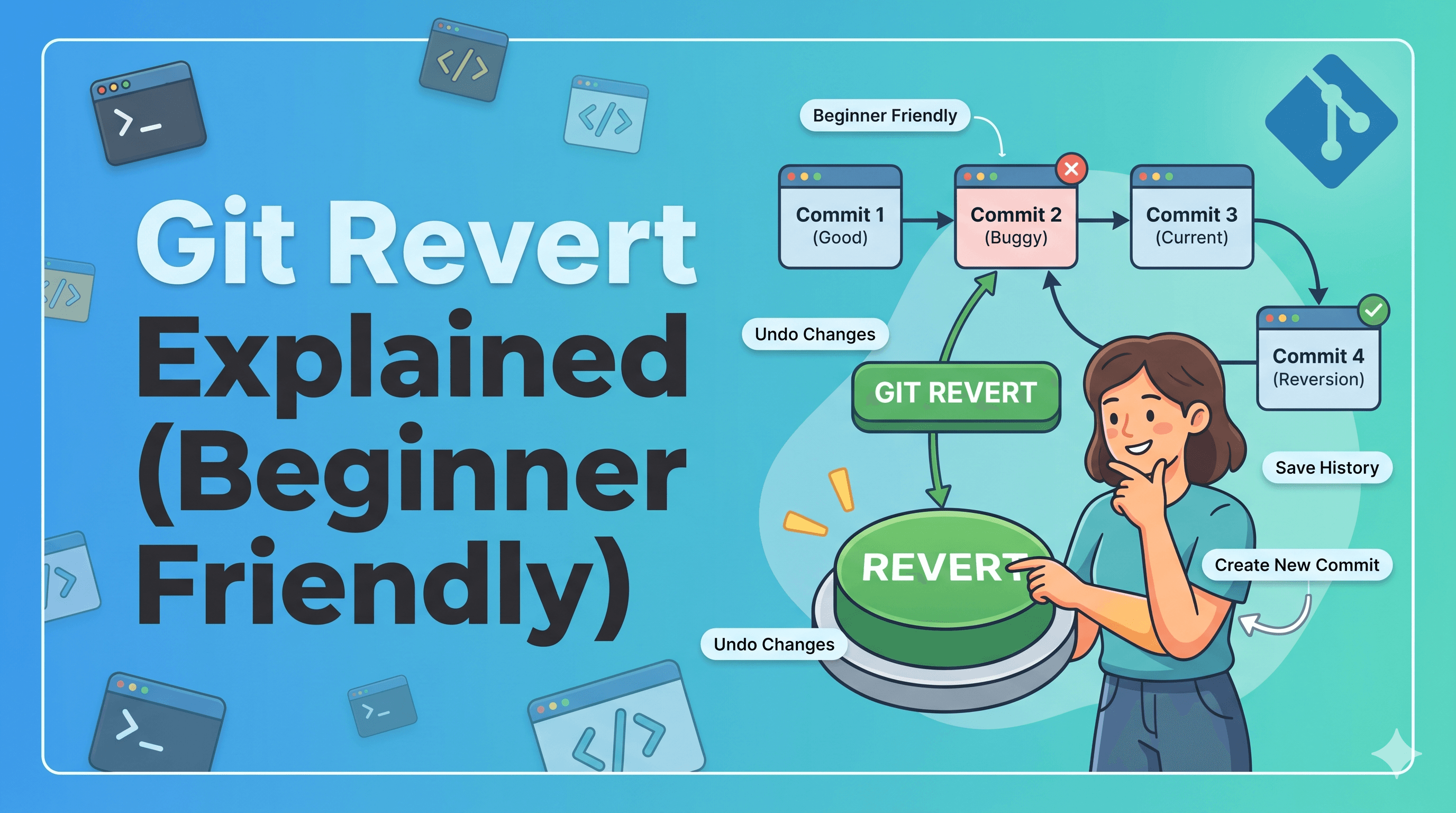
How to Undo Changes Safely (GitHub UI + Terminal)
Mistakes happen — especially when working with Git.
You might merge a branch and later realize:
👉 “Oops… something is wrong. I need to undo this.”
Good news: Git has a safe way to undo changes — git revert
This blog will explain:
What is
git revertWhy it is safe
How to use it from:
GitHub UI (no coding needed)
Terminal (CLI)
🔍 What is git revert?
git revert is a command that undoes a previous commit by creating a new commit.
👉 It does NOT delete history
👉 It does NOT break your branch
👉 It is 100% safe for team projects
🧠 Simple Example
Let’s say your project history looks like this:
A --- B --- C --- DNow you realize commit D is wrong.
If you revert it:
A --- B --- C --- D --- R👉 R = new commit that undoes D
So:
History stays intact
Code is fixed safely
⚠️ Why NOT use git reset?
Many beginners confuse this.
❌ git reset → rewrites history (dangerous)
✅ git revert → keeps history (safe)
👉 Always use revert in team projects
🚀 Scenario (Real-world)
You have 2 branches:
main→ productiondev→ development
You merged dev → main using a Pull Request.
But later…
❌ You found bugs in dev
Now you want to undo that merge.
✅ Method 1: Revert using GitHub UI (Easiest Way)
Using GitHub, you can revert with just a few clicks.
🧩 Step-by-step
1. Go to your repository
Open your project in GitHub.
2. Click Pull Requests
Go to Closed PRs
Find the PR you merged
3. Open the merged PR
You will see a button:
👉 “Revert”
4. Click “Revert”
GitHub will:
Create a new branch
Create a new Pull Request
Add a commit that undoes your merge
5. Merge the new PR
Click:
“Create Pull Request”
Then “Merge”
✅ Result
Your history becomes:
A --- B --- M --- RM= merged PRR= revert commit
👉 Your code is now back to the previous stable state
💻 Method 2: Revert using Terminal
Now let’s do the same thing using CLI.
🧩 Step 1: Switch to main branch
git checkout main🧩 Step 2: Pull latest changes
git pull origin main🧩 Step 3: Find merge commit
git log --onelineYou will see something like:
abc1234 Merge branch 'dev' into mainCopy that commit hash (abc1234)
🧩 Step 4: Revert the merge
git revert -m 1 abc1234🔥 What does -m 1 mean?
A merge commit has 2 parents:
maindev
👉 -m 1 tells Git:
“Keep main, remove dev changes”
🧩 Step 5: Push changes
git push origin main✅ Result
Same as GitHub UI:
A --- B --- M --- R🛠 What about the dev branch?
👉 Nothing changes in dev
It still contains the buggy code.
So next steps:
Go to
devFix your code
Push again
Create a new PR
🧠 Quick Comparison
MethodEasySafeRecommendedGitHub UI✅ Very easy✅ Safe⭐ Best for beginnersTerminal⚠️ Medium✅ Safe⭐ For developers
🏁 Final Thoughts
Use git revert when you want to undo something safely
Avoid
git resetin shared projectsGitHub UI makes reverting super easy
Terminal gives you more control
👉 Remember:
Revert = Undo safely without breaking history
#Learning, #Programming, #Github